
Introduction
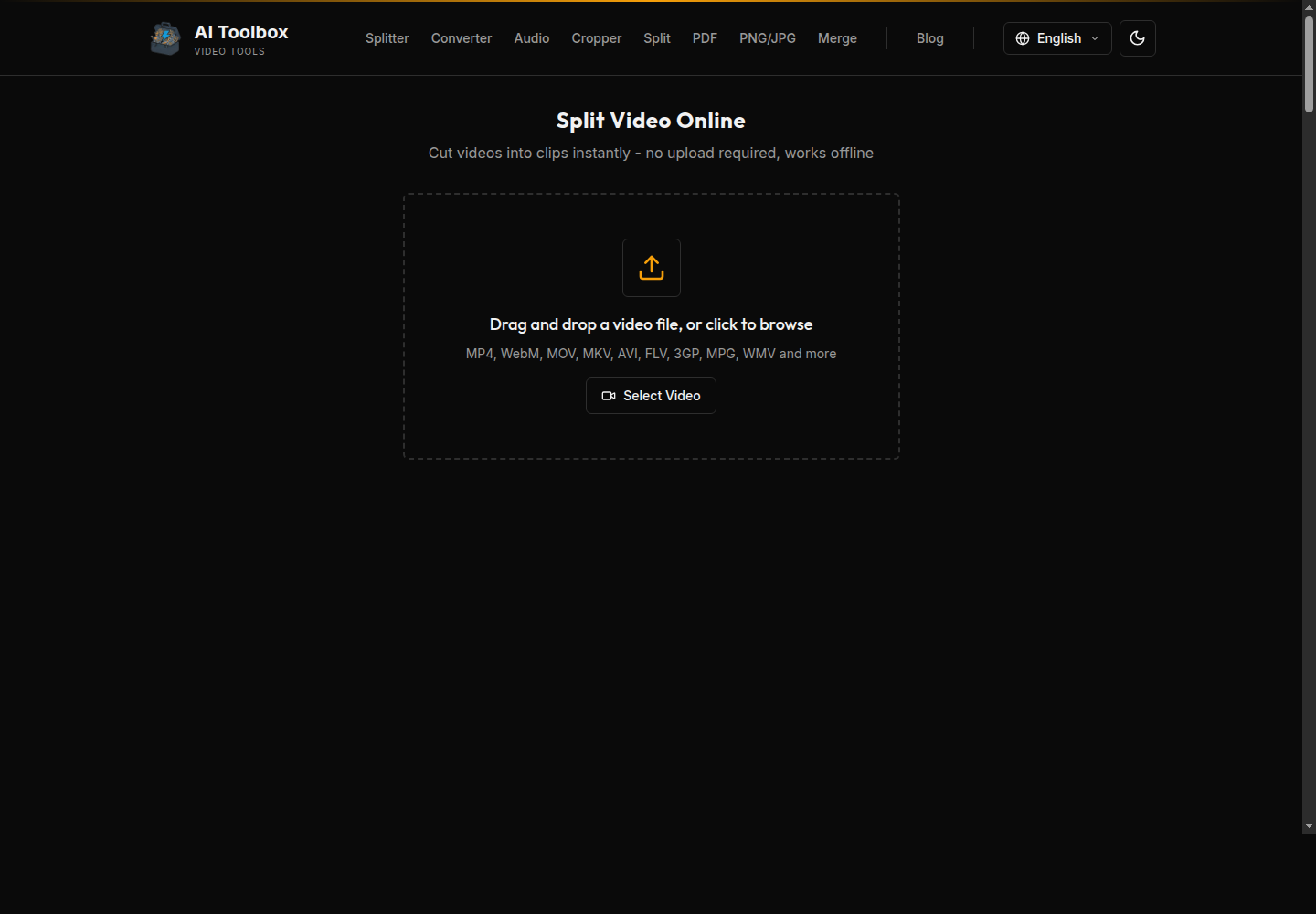
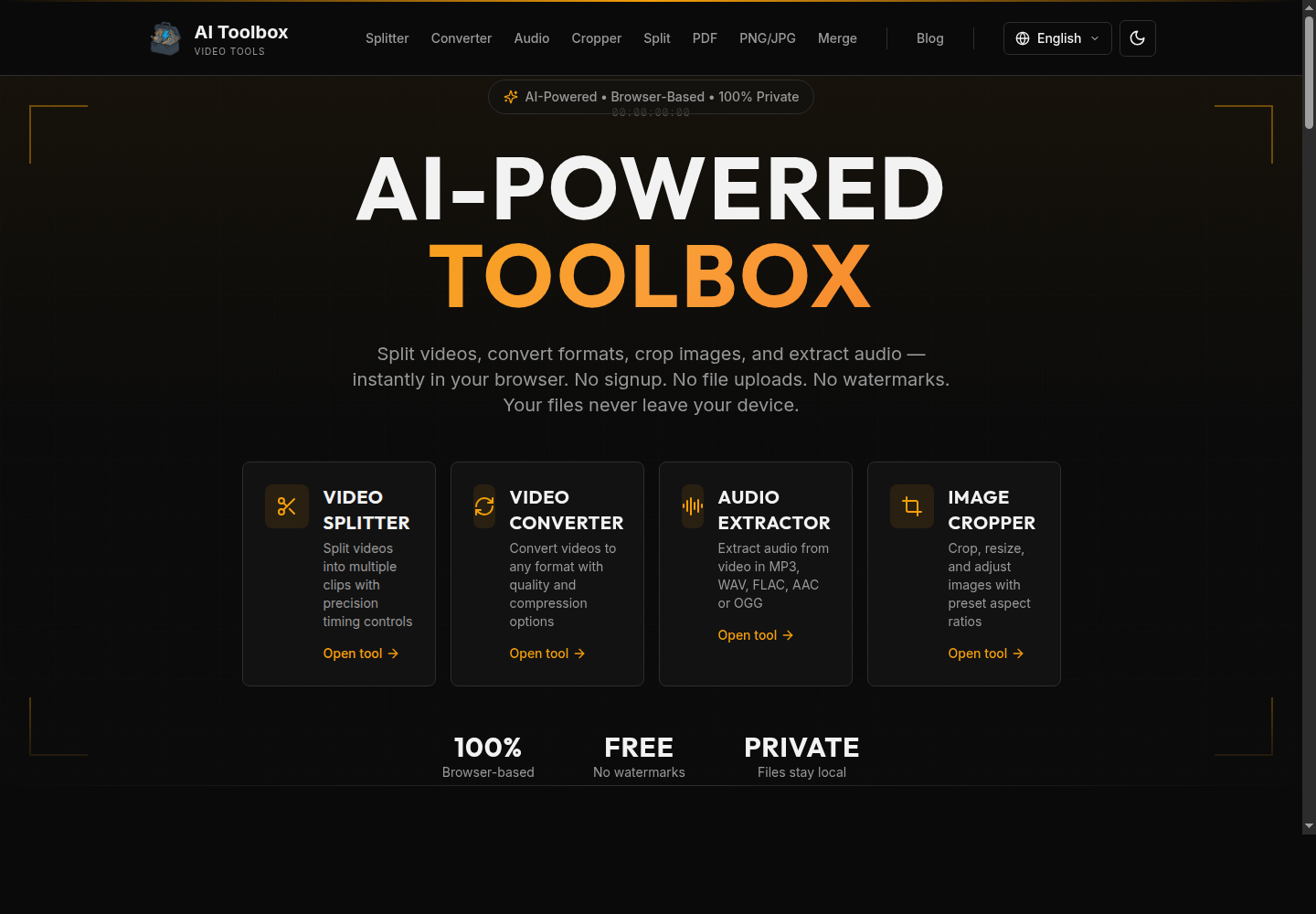
AI Toolbox Video Splitter is a browser-based tool for cutting video files into clips without uploading them to a remote server. The public page presents it as a free online video splitter that supports manual timestamps, equal parts, fixed durations, and file-size-based splitting.
The strongest fit is for creators, editors, students, marketers, and everyday users who need quick video cuts without installing desktop software or sending large files to a cloud service. Users should still verify browser performance, device memory, output format behavior, and rights to the footage before processing large or sensitive videos.
Key Features
- Local browser-based video splitting, with the site stating that files do not upload to a server.
- Drag-and-drop or browse-based video selection for common formats such as MP4, WebM, MOV, MKV, AVI, FLV, 3GP, MPG, and WMV.
- Manual split mode with waveform or thumbnail timeline interaction, draggable markers, typed timecodes, and preview before export.
- Equal-parts splitting for dividing a long video into a chosen number of uniform segments.
- Duration-based splitting for creating fixed-length clips, such as social media segments.
- File-size-based splitting for working around upload limits on platforms or messaging apps.
- Fast Mode using stream copy, plus a re-encode mode for more exact cuts and output format or quality changes.
Use Cases
AI Toolbox Video Splitter is useful when someone needs to cut a large video quickly and does not want to wait for upload, cloud processing, and download steps. The video splitter page is especially practical for simple tasks such as extracting sections from recordings, breaking long files into chapters, or preparing multiple shorter clips from one source.
Social content workflows are another clear use case. The page specifically mentions splitting by duration for Instagram Reels, TikTok, and YouTube Shorts, while also allowing manual cut points for cleaner transitions. That makes it useful when a creator needs platform-sized clips but still wants control over where each segment begins and ends.
The tool also fits privacy-sensitive or bandwidth-limited situations. Because the site says processing happens through browser-based FFmpeg and files stay on the device, it appears useful for users who want to avoid uploading drafts, internal recordings, or large raw footage to third-party servers.
Pricing
The public page describes AI Toolbox Video Splitter as free forever, with no signup, no watermark, and no server-imposed file-size cap. It also presents the tool as free and unlimited. No paid plan, credit model, or subscription pricing is visible in the fetched evidence, so users should check the current site if they need confirmation before using it in a recurring workflow.
User Experience and Support
The interface appears designed around a straightforward video workflow: select a file, choose the split method, review timing, and export clips. The page includes explanations for the four split modes and gives practical guidance on when to use Fast Mode versus re-encoding.
Support is mainly provided through on-page FAQ and educational content rather than account-based help. The FAQ covers safety, supported formats, equal splitting, large files, Fast Mode, AV1, keyframes, output formats, processing time, mobile behavior, subtitles, multiple audio tracks, metadata, and responsible use. That is a strong amount of self-serve guidance for a free browser tool.
Technical Details
AI Toolbox Video Splitter runs in the browser and the page says it uses WebAssembly-compiled FFmpeg for local processing. Fast Mode uses stream copy, which can avoid re-encoding and preserve original video and audio streams, but cuts may snap to the nearest keyframe rather than an exact frame.
When Fast Mode is disabled, the tool can re-encode clips for more exact cuts and lets users choose output containers such as MP4, WebM, MOV, MKV, or AVI, plus quality levels. The page notes that re-encoding depends on CPU and video resolution, that Chrome-based browsers are recommended for smoother performance, and that iOS Safari may be slower because of limited WASM performance.
Pros and Cons
Pros
- Processes video locally in the browser according to the public page, avoiding upload and download delays.
- Offers several splitting modes for different workflows: manual, equal parts, fixed duration, and target file size.
- Fast Mode can be useful for quick cuts without re-encoding.
- Supports many common video formats and export containers.
- Provides extensive on-page FAQ guidance for keyframes, formats, subtitles, metadata, mobile behavior, and large files.
Cons
- Browser performance depends on the user's device, memory, CPU, browser, and source video size.
- Fast Mode cuts at keyframes, so timing may be slightly off from the chosen split point.
- Re-encoding can take longer, especially for high-resolution or lengthy footage.
- The tool is designed for splitting, not full editing, merging, effects, captions, or timeline-based production.
- Advanced users may still need desktop video software for complex joins, multi-track work, or precise post-production.
FAQ
What is AI Toolbox Video Splitter used for?
AI Toolbox Video Splitter is used to cut video files into smaller clips directly in the browser. It supports manual timestamps, equal parts, duration-based clips, and file-size-based splitting.
Who is AI Toolbox Video Splitter best for?
It is best suited for creators, students, marketers, educators, and general users who need quick video cuts without installing a desktop editor. It is also useful for people who prefer not to upload files to a cloud tool for simple splitting tasks.
Does AI Toolbox Video Splitter upload my video?
The public page says processing happens locally in the browser and that files never touch a remote server. Users handling sensitive or regulated footage should still review the current site terms and use their own compliance judgment.
What is the difference between Fast Mode and re-encoding?
Fast Mode uses stream copy, which can split quickly without changing the original video and audio streams, but cuts may snap to nearby keyframes. Re-encoding takes longer but supports more exact cuts and output format or quality changes.
What video formats are supported?
The page lists MP4, WebM, MOV, MKV, AVI, FLV, 3GP, MPG, WMV, and more. Output options mentioned include MP4, WebM, MOV, MKV, AVI, and other containers when Fast Mode is disabled.
Can it split videos for Instagram, TikTok, or YouTube Shorts?
Yes. The FAQ suggests using duration-based splitting for platform limits such as Instagram Reels, TikTok, and YouTube Shorts, while manual splitting can help place cuts at cleaner moments.
Are there file-size limits?
The site says there is no server-imposed file-size limit because processing happens locally. In practice, the user's computer memory, browser, file size, and video resolution can still affect whether very large files process smoothly.
What should users check before relying on it for important footage?
Users should check browser compatibility, device performance, whether Fast Mode or re-encoding is better for their timing needs, how subtitles and multiple audio tracks are handled, and whether they have the rights to split and distribute the content.
Conclusion
AI Toolbox Video Splitter is a practical browser-based option for cutting video files without the usual upload-and-wait workflow. Its main value is local processing with multiple split modes, while users with complex editing needs or very large files should verify performance and consider a dedicated editor when necessary.